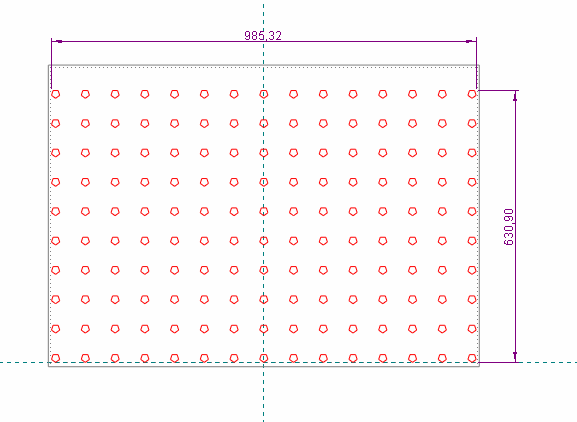
For rotary dieboards, you can design chase holes in shapes that differ from circle. The shapes are designed by hand in a 1up drawing, and then are arranged in a layout drawing. The layout drawing is then saved to serve as a chase holes template.
Designing and saving custom chase holes templates
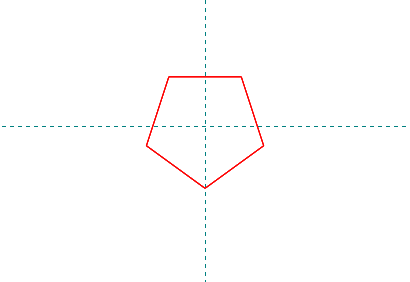
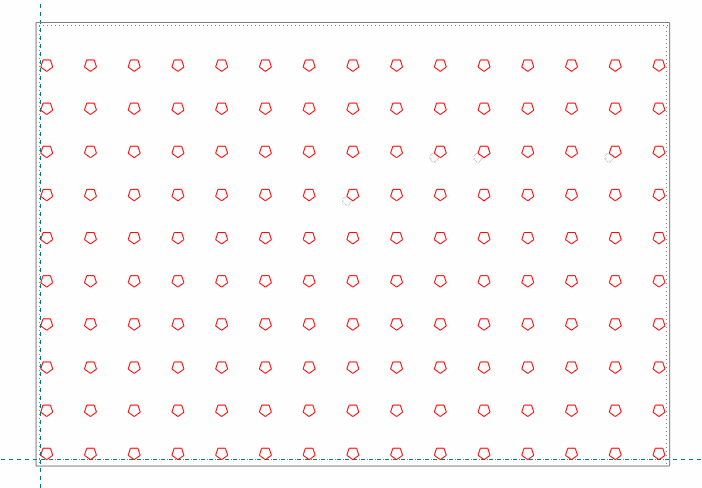 A model layout
TIP: A quick way to do this is by using the translation transformation: In Ox in the contextual edit bar, divide the layout's width by two, and leave the height (in Oy) at zero.
NOTE: Saving in this folder is needed so that the template can be available when a rotary dieboard is being set.
To add a custom chase holes template to a rotary dieboard
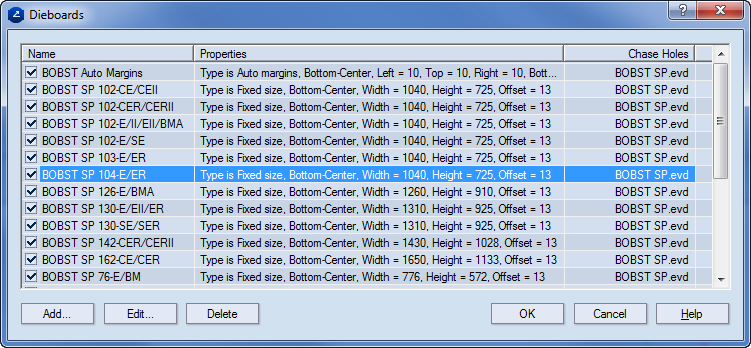
The Dieboards dialog box appears.
The Add Dieboard dialog box appears.
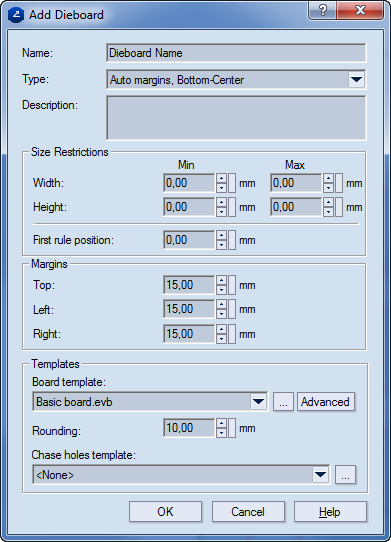
Name Sets the name of the dieboard.
Type Sets the type of the margins: automatic or fixed.
Description An optional text containing notes about the dieboard.
Size restrictions Sets the constraints in which the dieboard's width, height and the position of the first rule may vary.
Width In Min and Max the lowest and highest values of the size of the dieboard are set.
Height In Min and Max the lowest and highest values of the height of the diaboard are set.
First rule position Sets the distance for the position of the first rule.
Margins Settings for the margins of the dieboard
Top Sets the distance for the upper margin.
Left Sets the distance for the left margin.
Right Sets the distance for the right margin.
Templates Settings of the board and chase hole templates.
Board templates Displays the currently loaded board template. To add a new one, click the browse button  , and then in the dialog box that appears, choose a new template.
Advanced Opens a dialog box in which the board template profile can be edited.
Rounding Sets the rounding of the dieboard corners. Here, the rounding radius value is entered.
Chase hole template Selects the chase holes template that will be used on the dieboard. To select a different template, click the down arrow, and then in the dropdown list that appears select a template. To add a new template, click the browse button , and then in the dialog box that appears, choose a new template.
The custom chase hole template is attached to the dieboard.