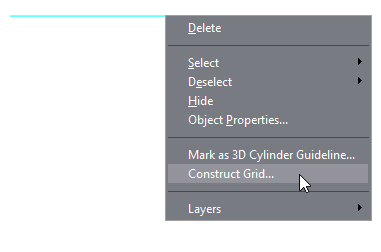
Constructing grid on a line
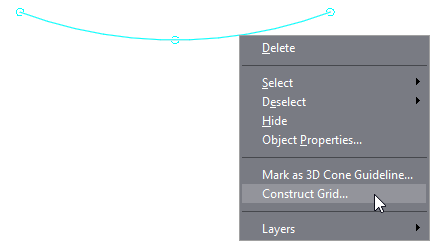
Constructing grid on an arc
This page explains how to create a drafting grid. Learn more about grid and how you can use it to make your drafting easier.
To add a drafting grid to an object (line or arc)
Constructing grid on a line
Constructing grid on an arc
The Grid Properties dialog box appears.
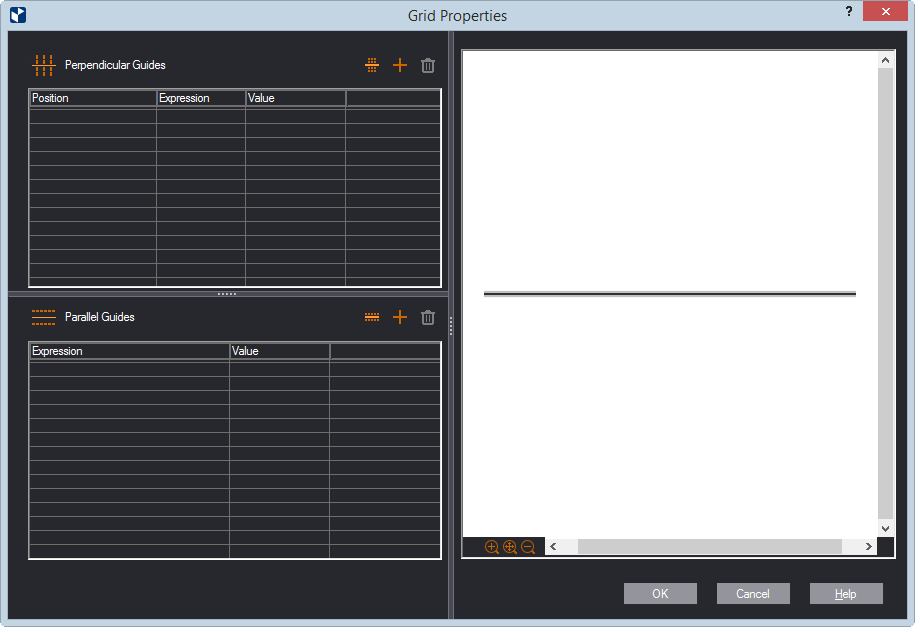
The Grid Properties dialog box is where you define how many parallel and perpendicular guides you want your grid to have.
 ,
and then click how many lines you want your grid to have.
,
and then click how many lines you want your grid to have.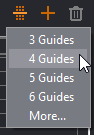
NOTE: The outer guides are counted. This means that, if you want the grid to divide the object into three sections, you need to select 4 Guides.
When you click an option, records for the guides appear in the list.
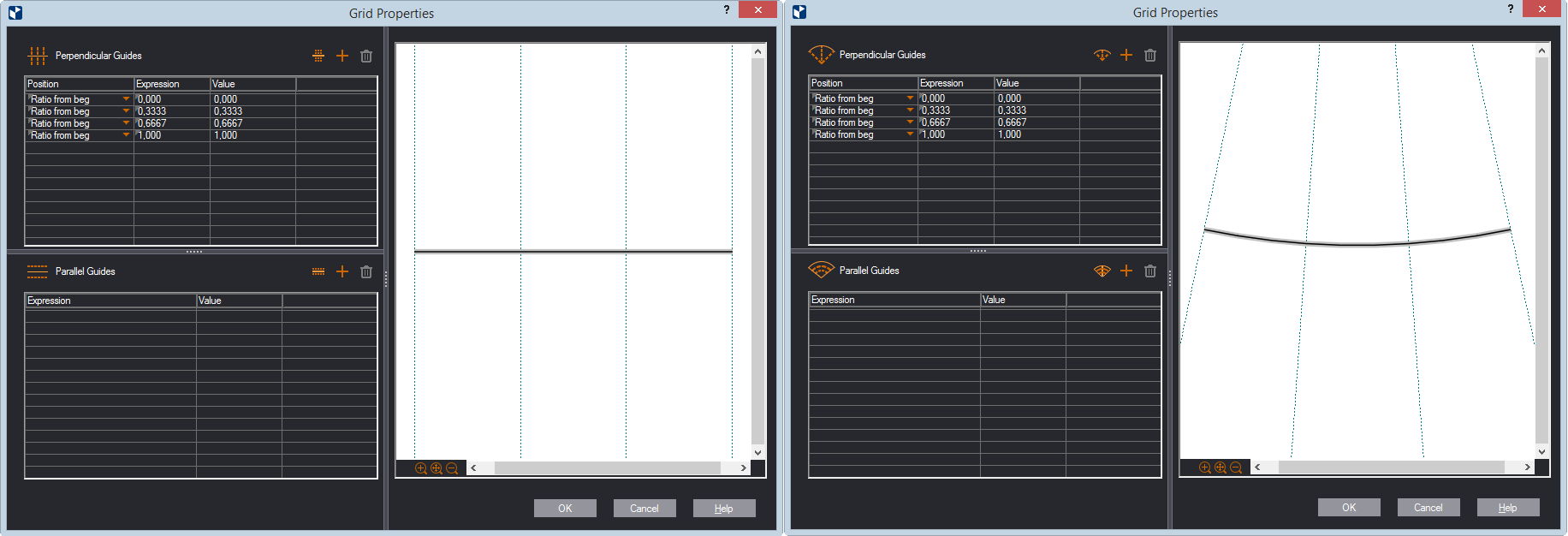
| Position | Sets the guides' positions along the object (line or arc).
In each record, click in Expression to see the options
that you can use to position the respective guide.
|
|---|---|
| Expression | The expression that sets the position of the guide relative to what you have chosen in Position Type a value for how far you want to position the guide. |
| Value | The value for the position to which the expression evaluates. |
NOTE: You can type a number, a parameter (it has to exist in the project already), or formulas.
 . As you add a new
guide, its record appears in the list. Edit each new guide as
you need it.
. As you add a new
guide, its record appears in the list. Edit each new guide as
you need it. .
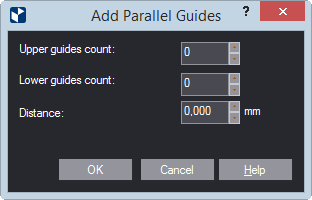
.The Add Parallel Guides dialog box appears.
| For a line object | For an arc object | ||
|---|---|---|---|
| Upper guides count | How many guides you want above the line. | Outer guides count | How many guides you want outside the arc. |
| Lower guides count | How many guides you want below the line. | Inner guides count | How many guides you want inside the arc. |
| Distance | How far apart you want the guides. | ||
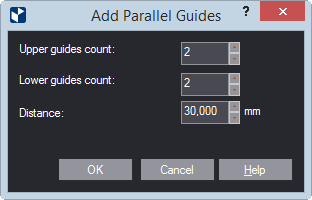
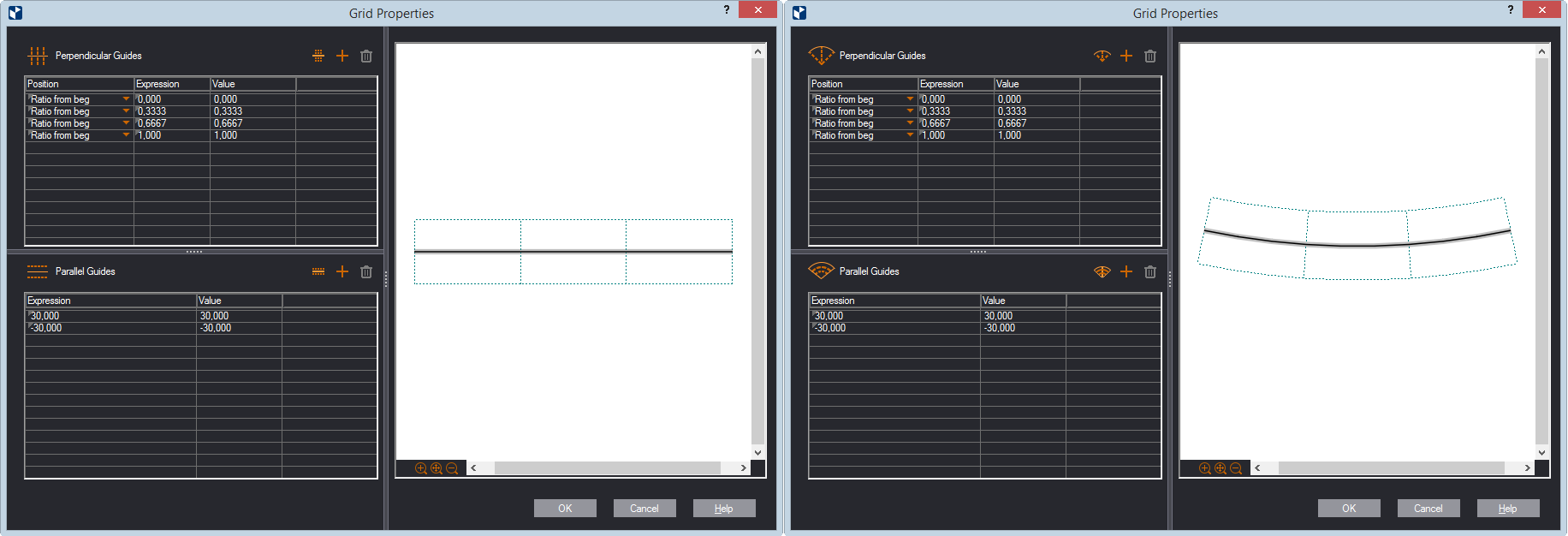
Records appear for the guides in the list. Note that the upper/inner guides have positive values and the lower/outer guides have negative values.
NOTE: You can type a number, a parameter (it has to exist in the project already), or formulas.
. As you add a new guide,
its record appears in the list. Edit each new guide as you need
it: when you type a positive value, the guide will be above the
line/inside the ar; when you type a negative value, it will be
below the line/outside the arc.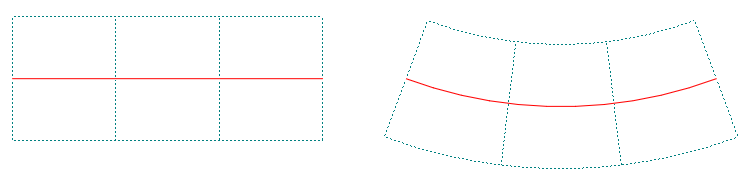
Grids to a line and an arc.
You can edit a constructed grid. Here's how:
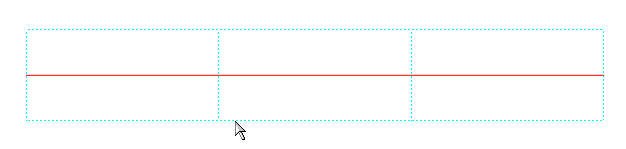
NOTE: When you want to edit a grid, do not click the base object — the line or arc. Doing this will display the object's own properties.
top of page